


Aplicabilidad
Este artículo se aplica a: Plataforma web de Gate
Preparación: Asegúrate de haberte registrado e iniciado sesión en tu cuenta de Gate
Tiempo estimado requerido: 3 minutos
Objetivo
Esta guía te mostrará cómo configurar alertas de precio para pares de trading spot y de contratos en la plataforma web de Gate.
Pasos
Paso 1: Accede a la página de configuración de alertas de precio
Alertas de trading spot:
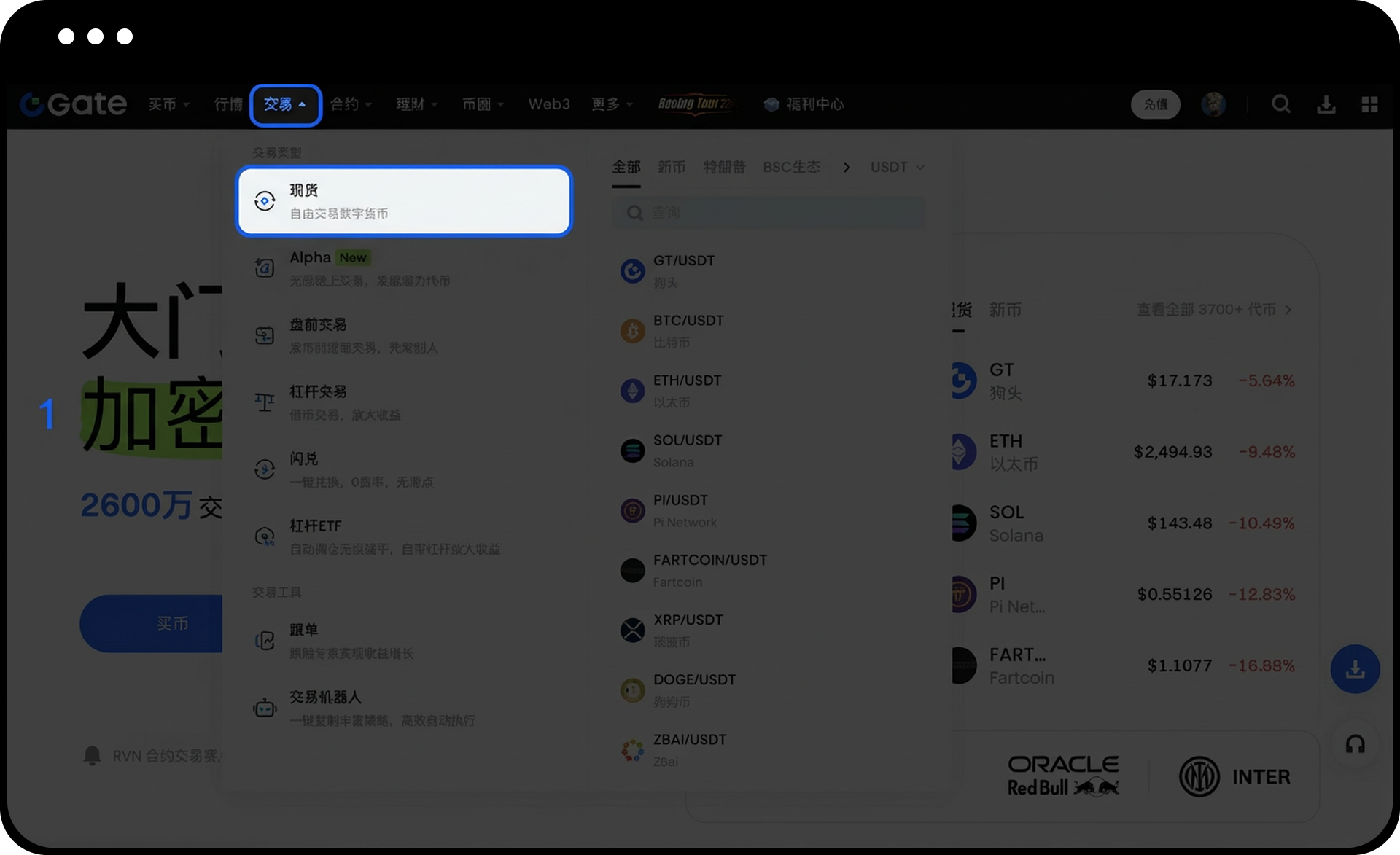
- Haz clic en Trading en la barra de navegación superior
- Selecciona Trading Spot
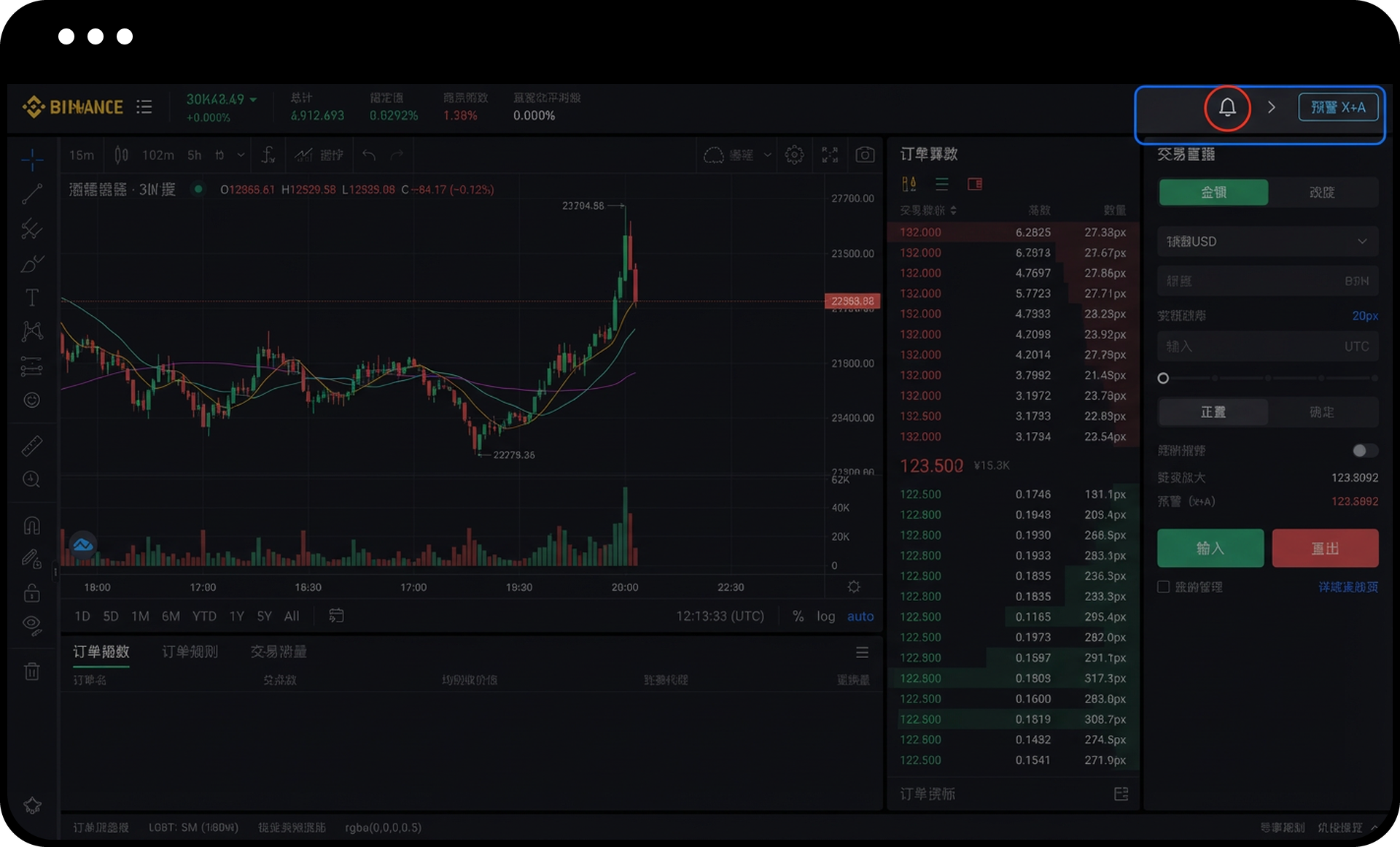
- Haz clic en el icono de Alerta de precio en la esquina superior derecha de la página de trading
Alertas de trading de contratos:
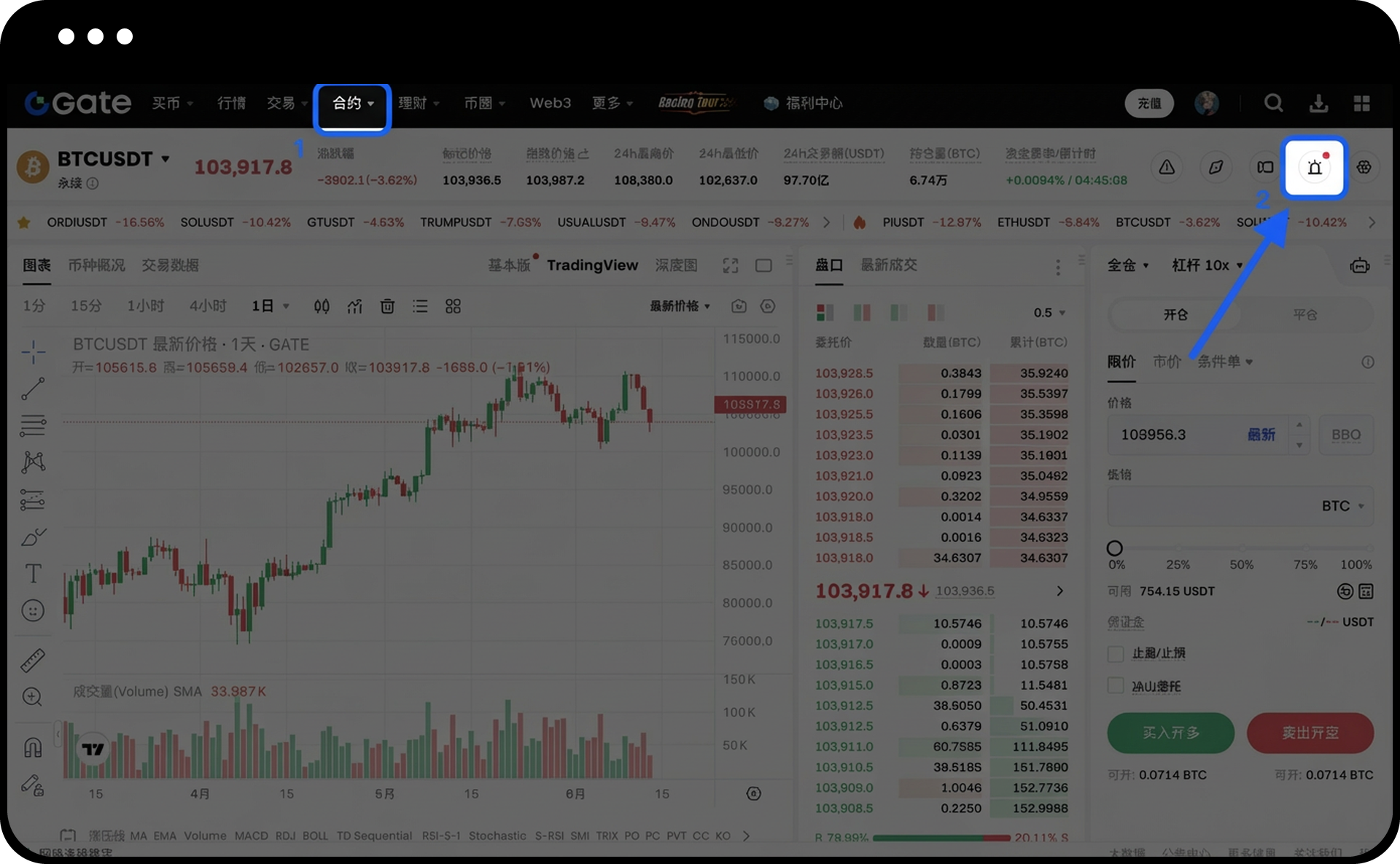
- Haz clic en Contratos en la barra de navegación superior
- Selecciona Contratos Perpetuos
- Haz clic en el icono de Alerta de precio en la esquina superior derecha de la página de trading
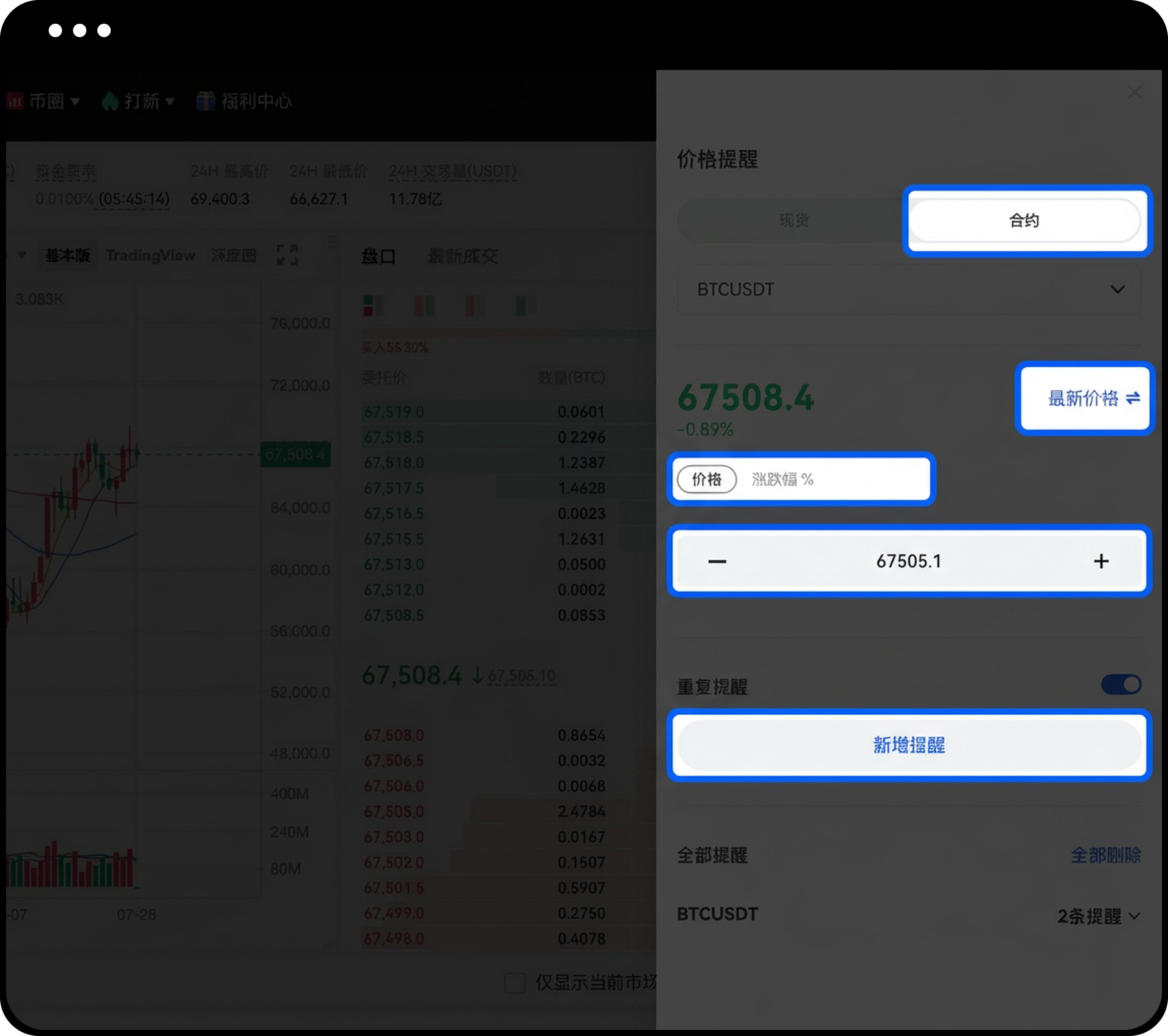
Paso 2: Configura los parámetros de la alerta
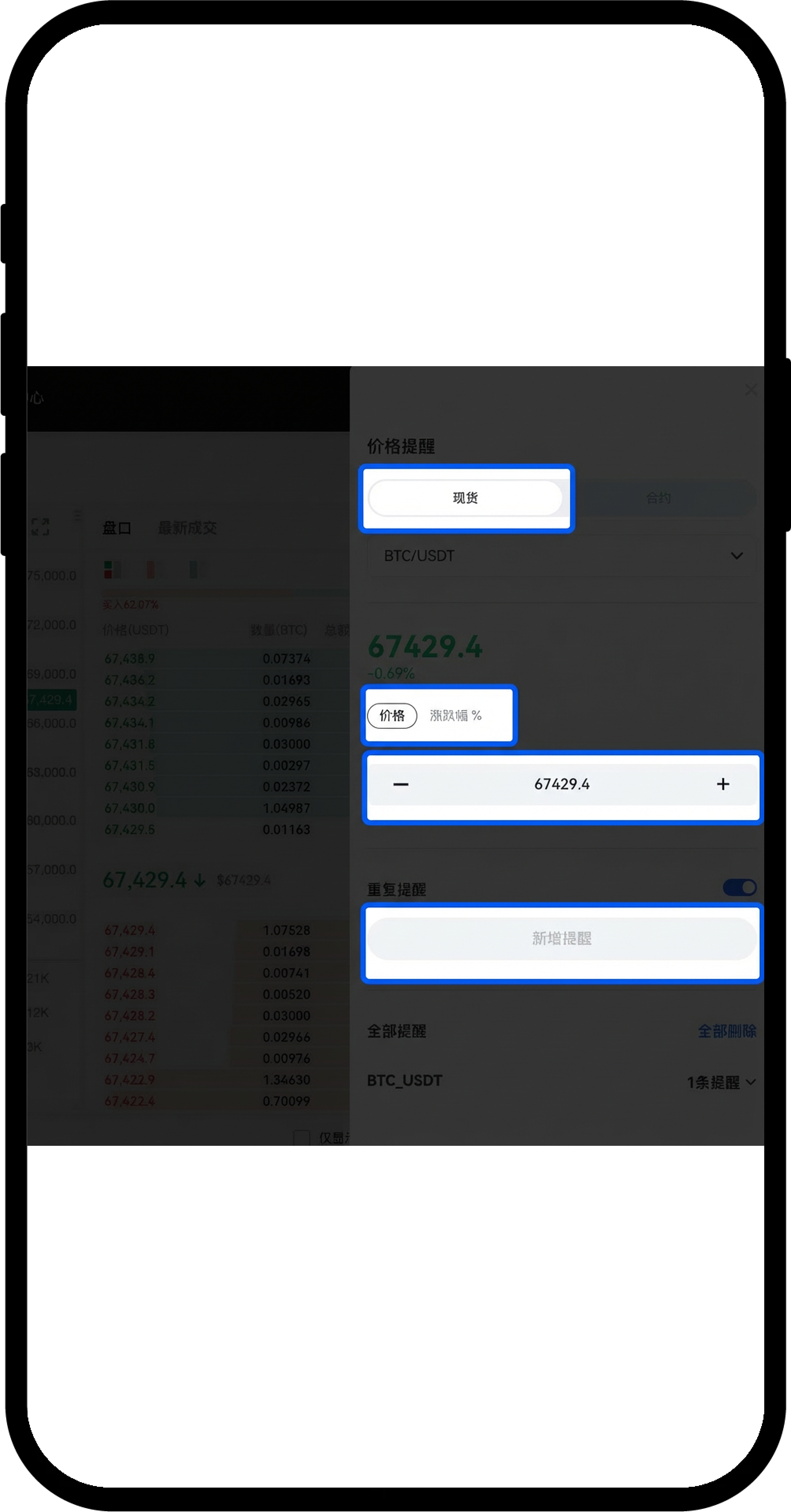
- Elige el tipo de trading: Spot o Contratos
- Selecciona el par de trading
- Para contratos, elige el tipo de precio de alerta: Último precio o Precio de referencia (Mark Price)
- Configura la condición de la alerta: Precio o Cambio porcentual
- Introduce el valor específico
- Elige si deseas activar la opción Repetir alerta
- Haz clic en Añadir alerta
Paso 3: Gestiona las alertas existentes
- Consulta tu lista de alertas añadidas en la página de configuración de alertas
- Puedes eliminar alertas individuales
- Puedes modificar el estado de la opción de repetir alerta
Notas
- Las alertas de precio configuradas en la plataforma web se enviarán como notificaciones en la App
- Las alertas solo se activan cuando el precio cumple con las condiciones establecidas
- Asegúrate de haber concedido permisos de notificación a la App de Gate para recibir las alertas
Preguntas frecuentes
P1: ¿Dónde recibiré las notificaciones de las alertas configuradas en la plataforma web?
R: Cuando se cumplan las condiciones de tu alerta de precio, las notificaciones se enviarán a la App.
P2: ¿Cómo puedo modificar o eliminar una alerta que ya he configurado?
R: Puedes eliminar directamente o cambiar la opción de repetir alerta para alertas individuales en la lista de alertas.
P3: ¿Por qué no he recibido una notificación después de configurar una alerta?
R: Por favor, revisa lo siguiente:
- Si el precio ha alcanzado la condición de activación que configuraste;
- Si el sistema de tu teléfono ha concedido permisos de notificación a la App de Gate;
- Si la App de Gate está ejecutándose en segundo plano.
Descargo de responsabilidad
El contenido aquí proporcionado es solo para fines de referencia y educativos, y no constituye asesoramiento financiero, de inversión, comercial ni legal, ni constituye una oferta o solicitud para comprar o vender activos digitales. Gate no realiza declaraciones ni garantías, expresas o implícitas, sobre la exactitud, integridad o actualidad de la información contenida en este documento. Las características del producto, interfaces, normas y estructuras de tarifas pueden actualizarse o modificarse en cualquier momento. Consulta los comunicados más recientes y la información que aparece en la plataforma de Gate para obtener los detalles más precisos.
Las inversiones en activos digitales implican un riesgo significativo y los precios pueden fluctuar considerablemente. Podrías perder la totalidad de tu inversión. Toma decisiones con cautela en función de tu situación financiera y tolerancia al riesgo, una vez que hayas comprendido plenamente los riesgos asociados. Si es necesario, te recomendamos consultar con un asesor financiero o legal independiente.
Para más información sobre los posibles riesgos, consulta la Divulgación de riesgos y el Acuerdo de usuario de Gate.
