


Webで報酬履歴を確認する方法
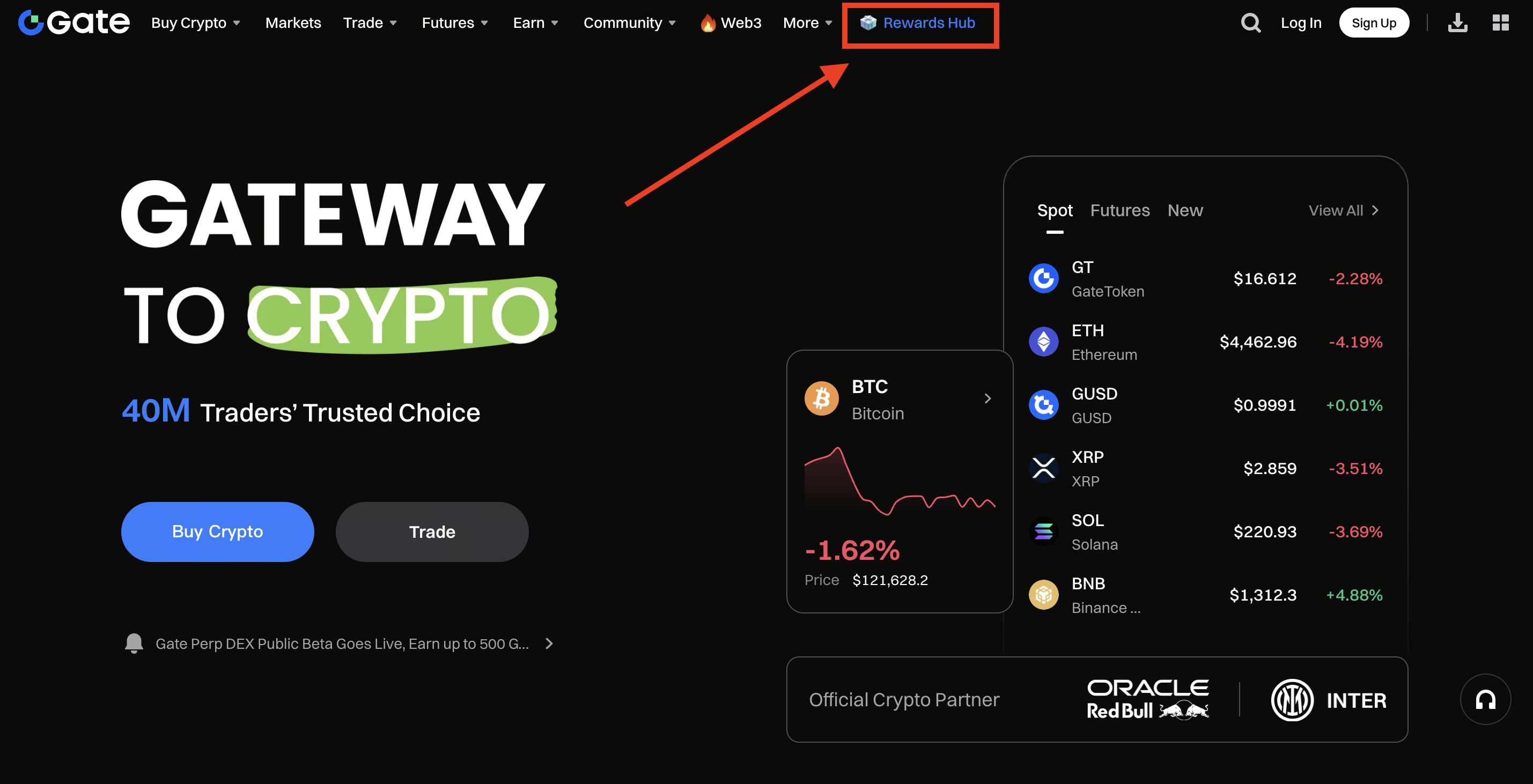
ステップ1: Gateアカウントにログインし、上部のナビゲーションバーにある [特典センター] (Rewards Hub) をクリックします。
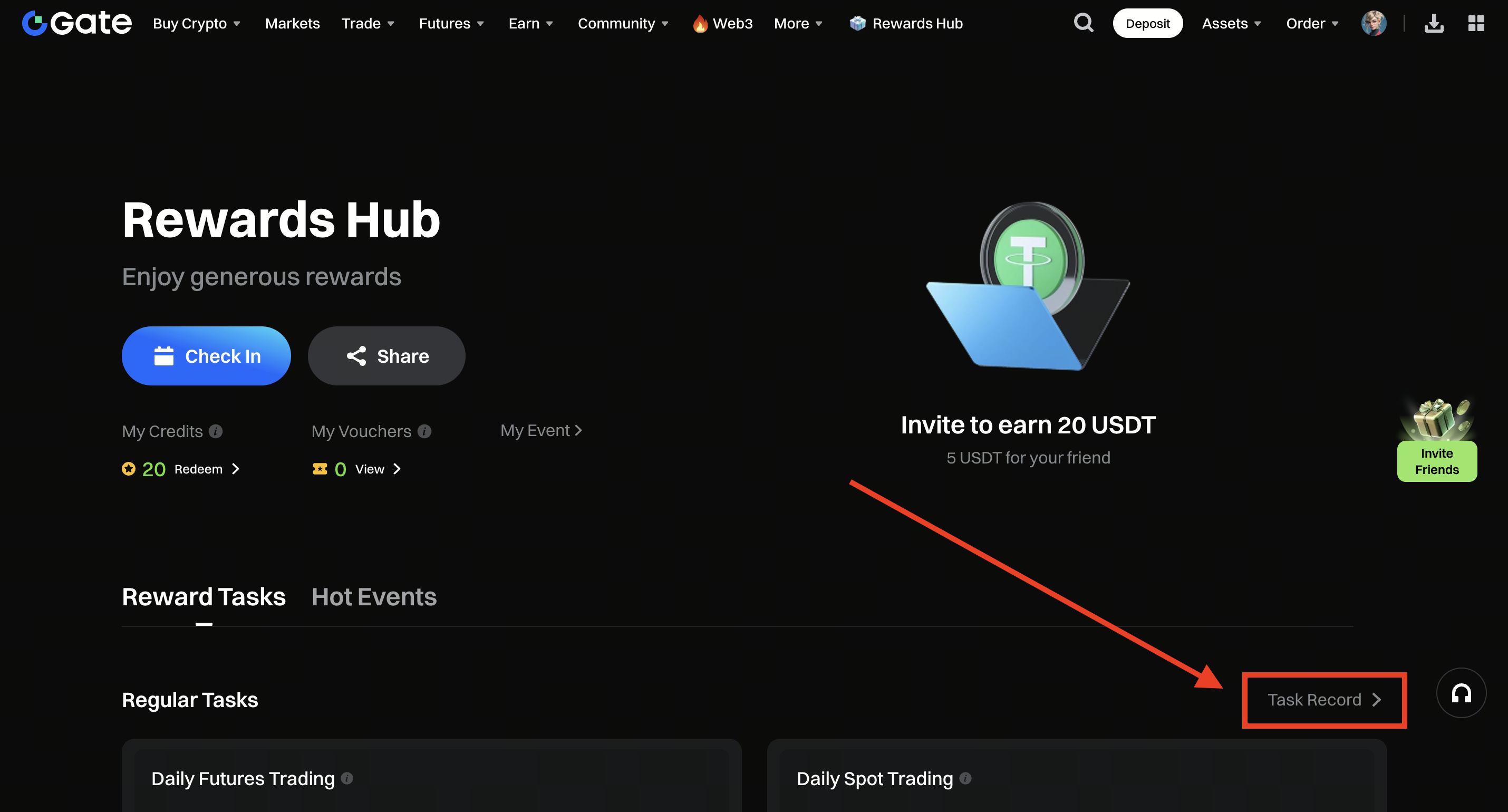
ステップ2: 特典センター (Rewards Hub) ページの右下にある [タスク記録] (Task Record) ボタンをクリックします。
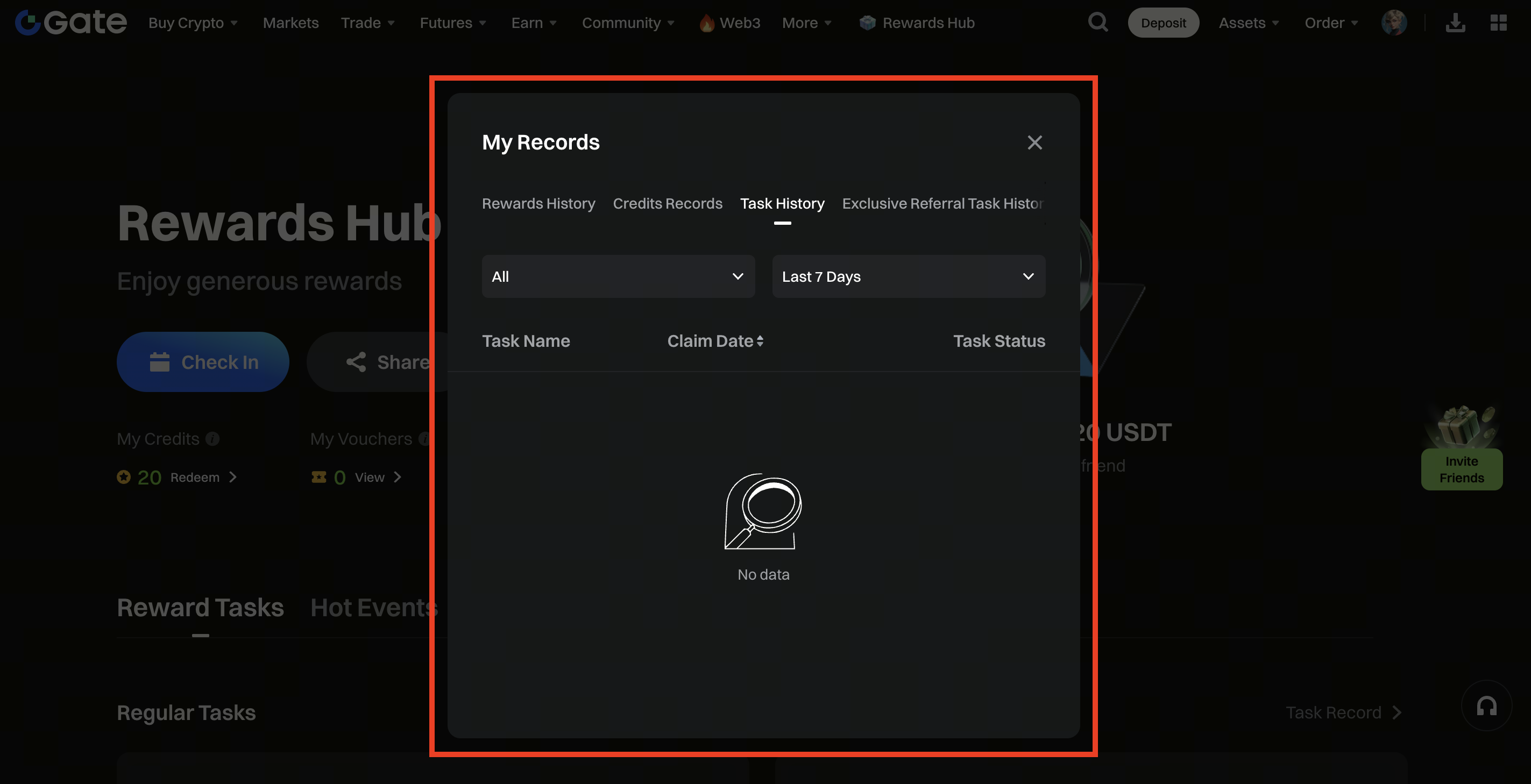
マイ記録 (My Records) ウィンドウが表示されたら、以下のタブを切り替えて内容を確認できます:
- 報酬履歴 (Rewards History)
- クレジット履歴 (Credits Records)
- タスク履歴 (Task History)
- 招待専用タスク履歴 (Exclusive Referral Task History)
期間(例:「過去7日間」)や種類(例:「すべて」)でフィルターをかけて、特定の記録を確認することもできます。
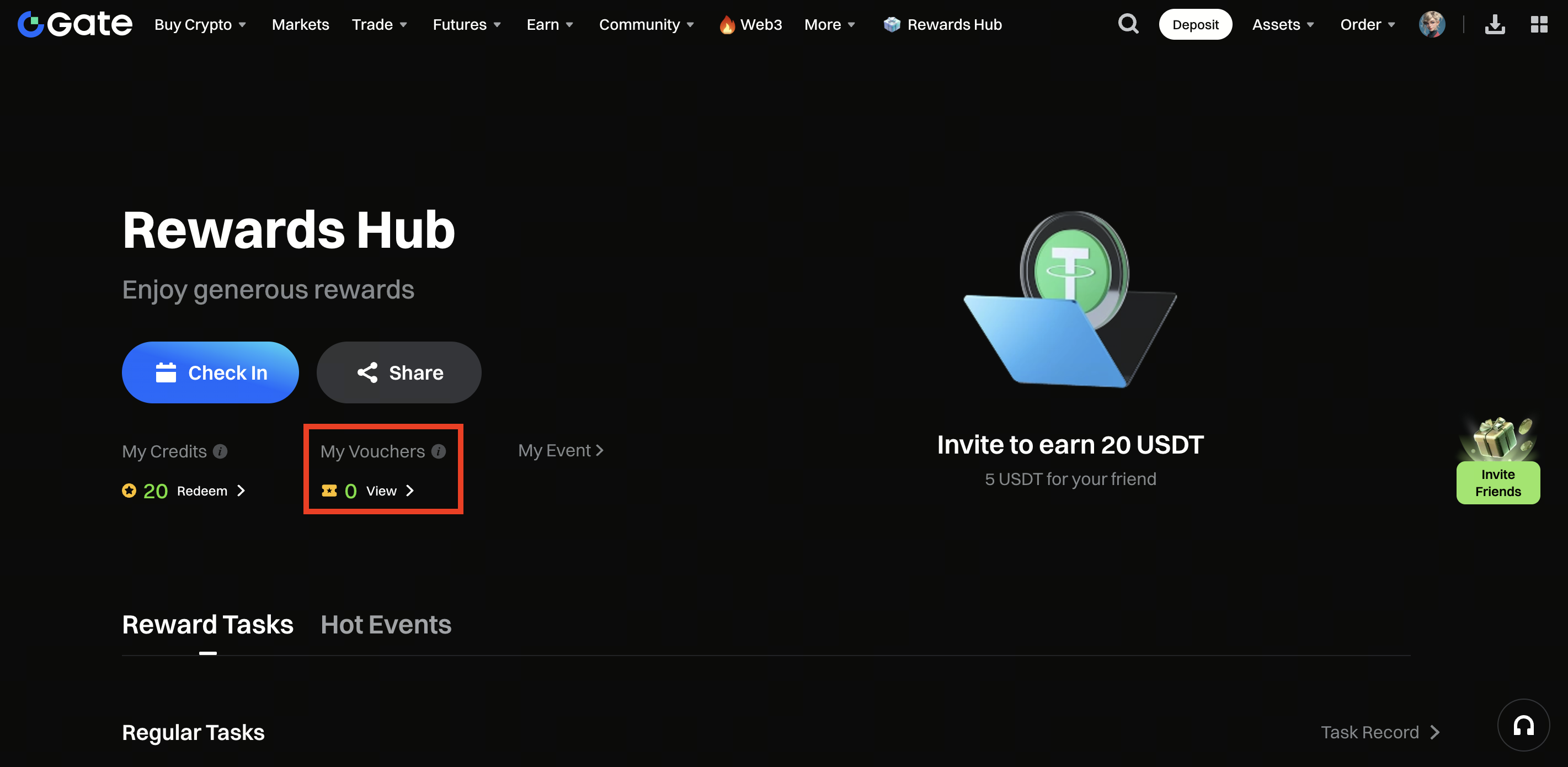
ステップ3: [マイクーポン] (My Vouchers) の下にある小さな矢印をクリックして、利用可能なクーポンを確認します。
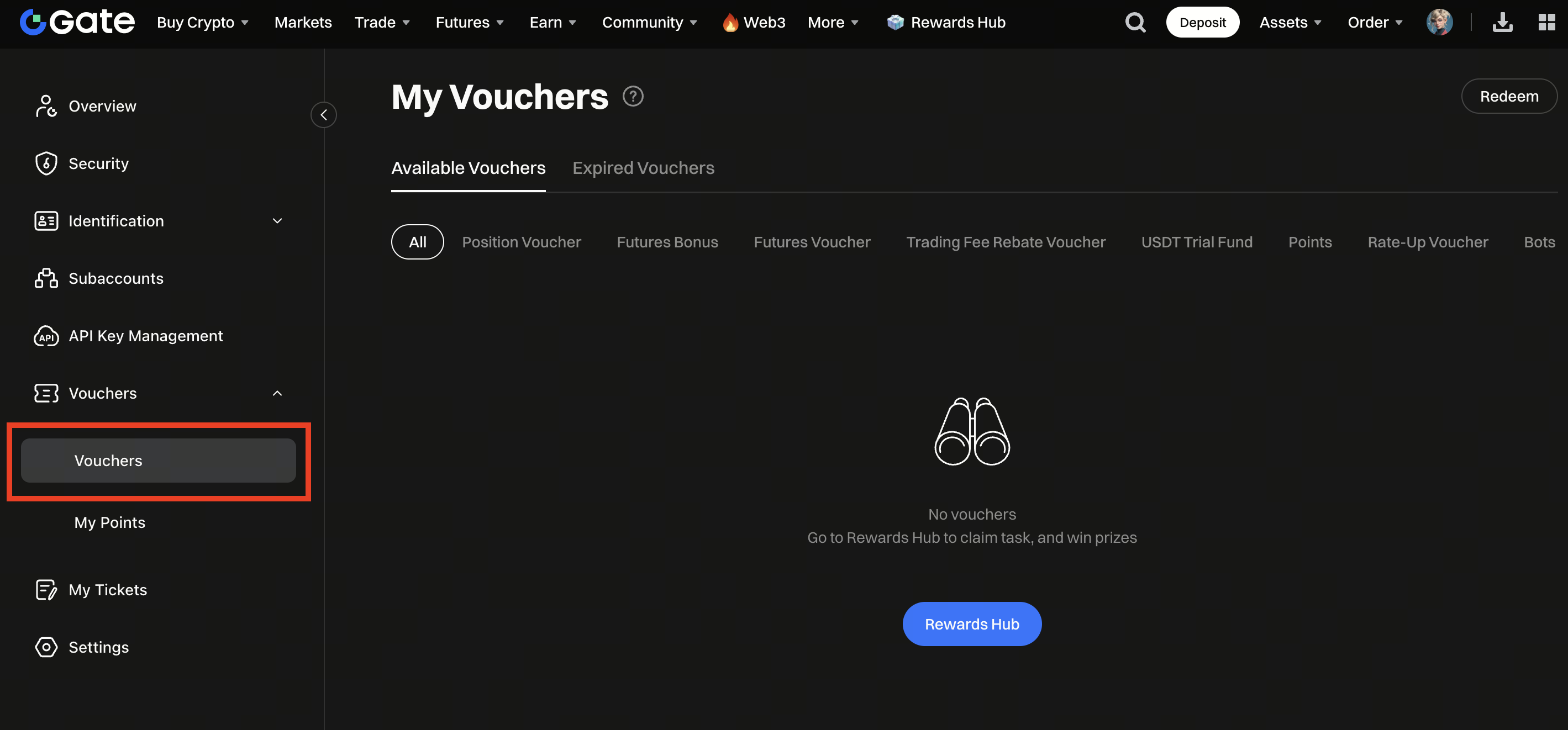
アプリで報酬履歴を確認する方法
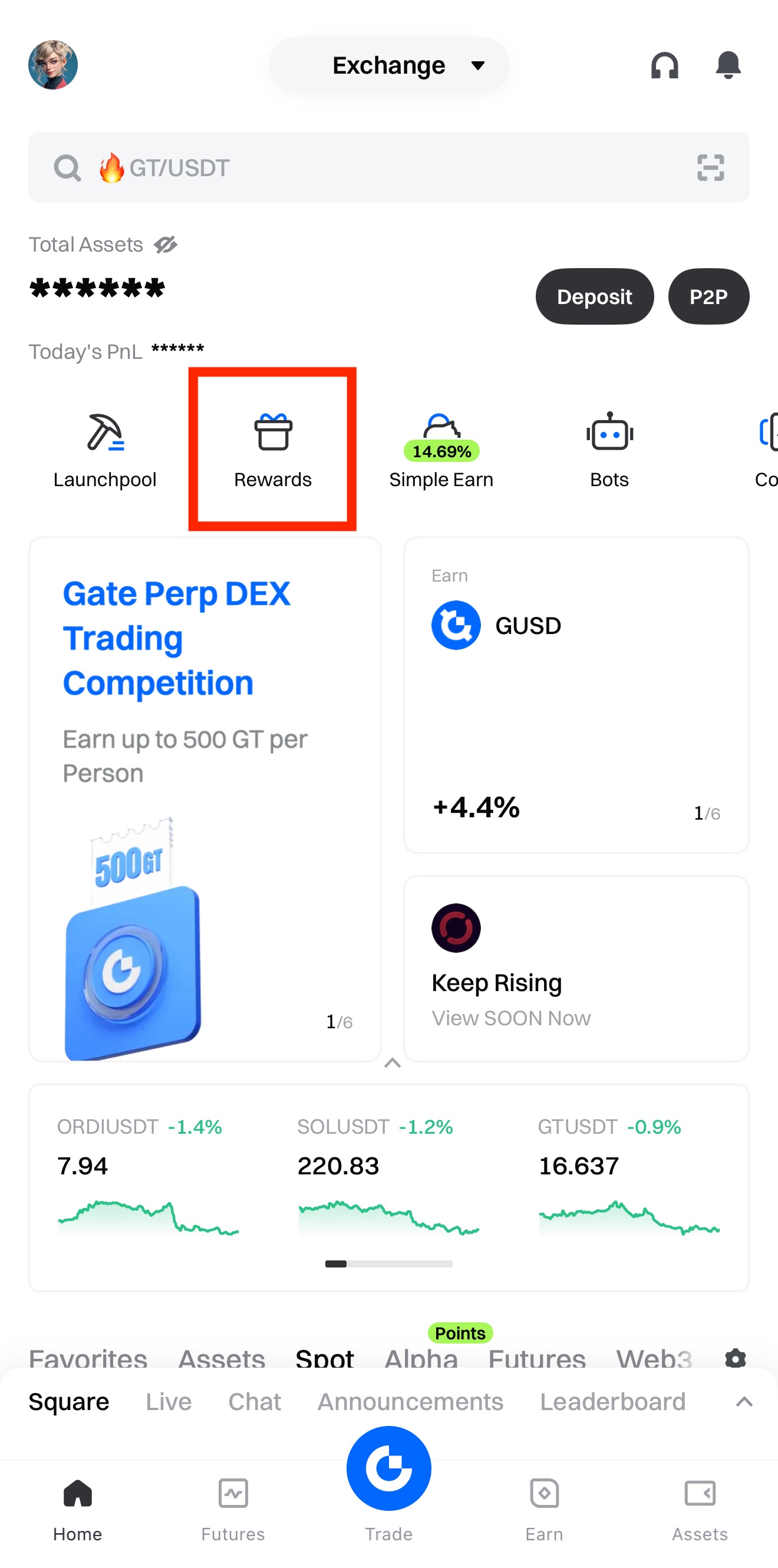
ステップ1: Gateアプリを開き、ホーム画面で [特典] (Rewards) をタップします。
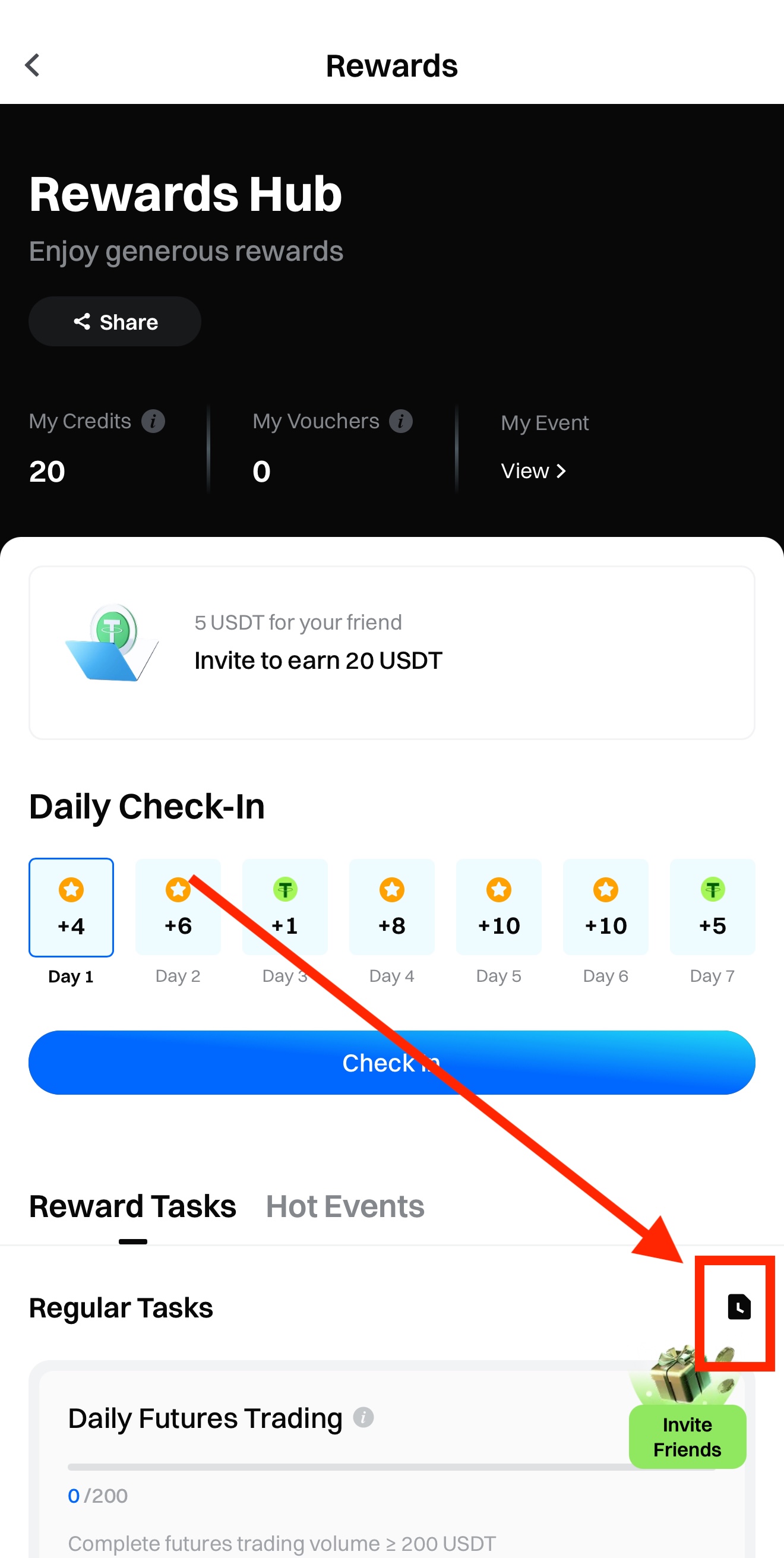
ステップ2: 特典センター (Rewards Hub) ページで [タスク記録] (Task Record) をタップします。
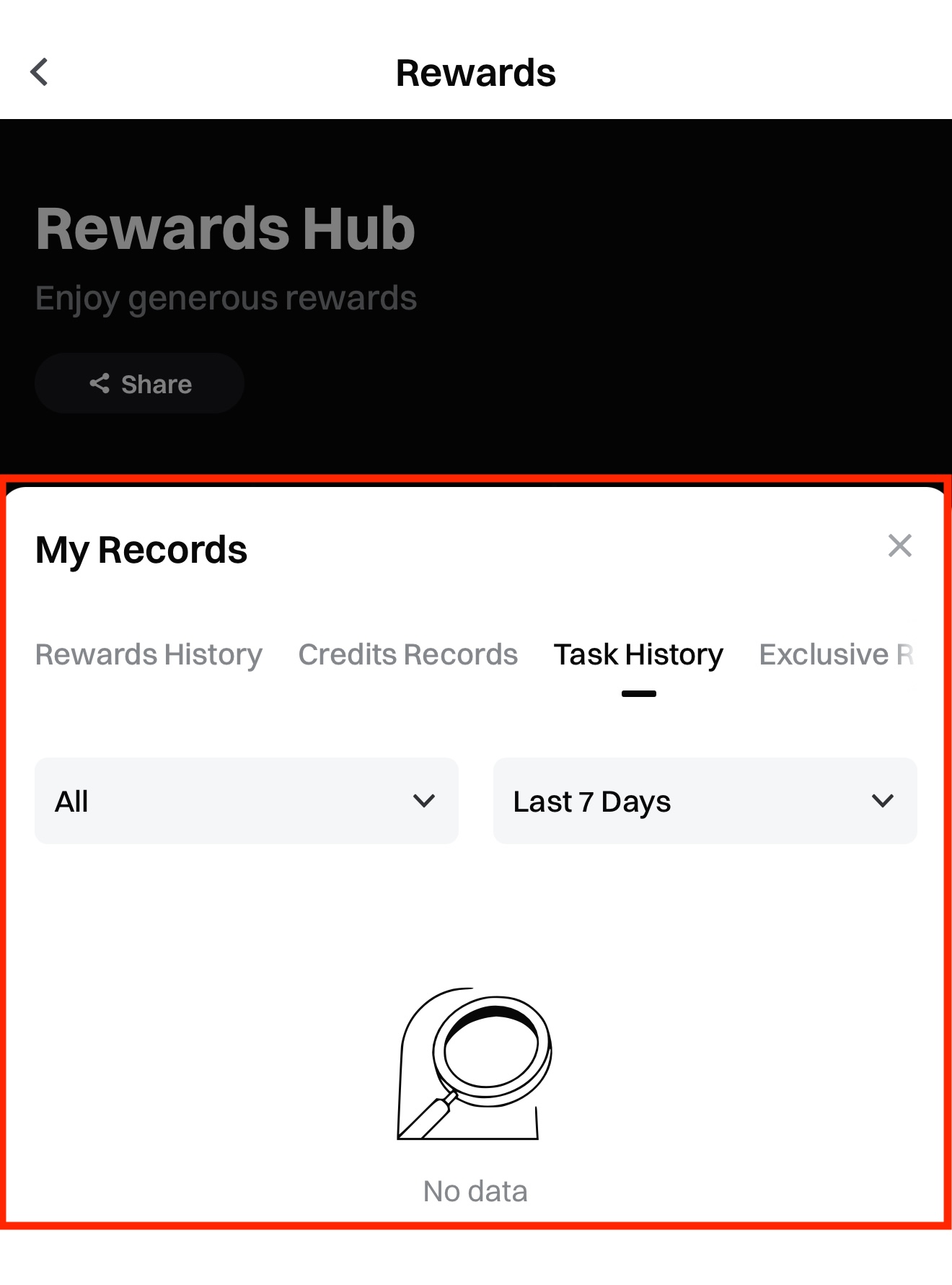
マイ記録 (My Records) ウィンドウでは、以下のタブを切り替えて内容を確認できます:
- 報酬履歴 (Rewards History)
- クレジット履歴 (Credits Records)
- タスク履歴 (Task History)
- 招待専用タスク履歴 (Exclusive Referral Task History)
また、期間(例:「過去7日間」)や種類(例:「すべて」)でフィルターを設定して確認することもできます。
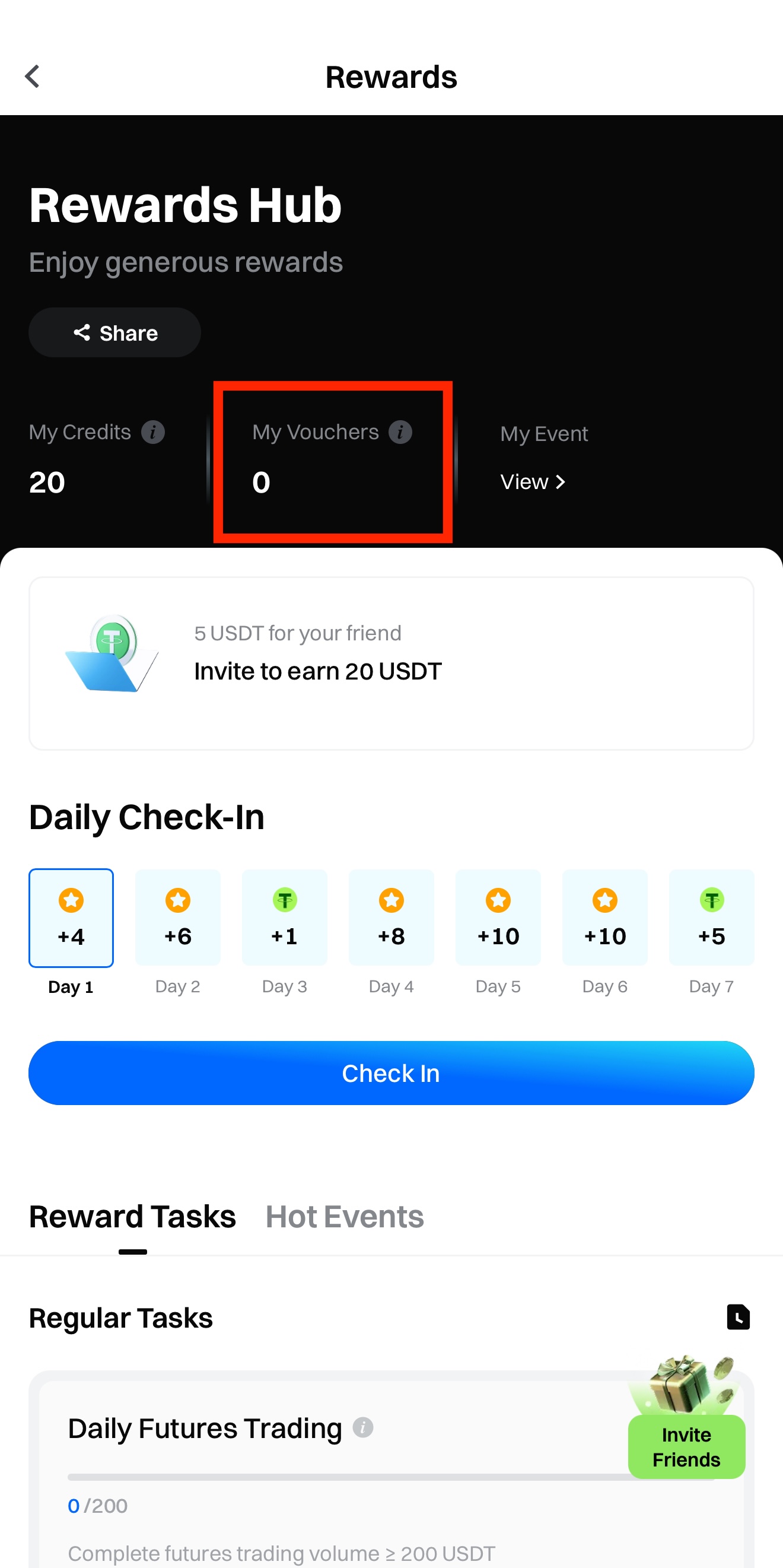
ステップ3: [マイクーポン] (My Vouchers) をタップして、利用可能なクーポンを確認します。
本コンテンツは参考および教育目的のみであり、金融、投資、取引、または法律に関する助言を構成するものではなく、いかなるデジタル資産の売買の申込みまたは勧誘を構成するものでもありません。Gateは、本コンテンツに含まれる情報の正確性、完全性、適時性について、明示または黙示のいかなる表明または保証も行いません。商品機能、インターフェース、ルール、手数料体系は、いつでも更新または調整される場合があります。最も正確な詳細については、最新のお知らせおよびGateプラットフォーム上に表示される実際の情報をご参照ください。
デジタル資産への投資には重大なリスクが伴い、価格は大幅に変動する可能性があります。投資額の全額を失う可能性があります。関連するリスクを十分に理解したうえで、ご自身の財務状況とリスク許容度に基づき、慎重に判断してください。必要に応じて、独立した専門の金融または法律アドバイザーへ相談することを推奨します。
想定されるリスクの詳細については、Gateのリスク開示およびユーザー契約をご参照ください。
