


Just follow these two simple steps to add a widget to your phone’s lock screen, making it easier to keep track of the market.
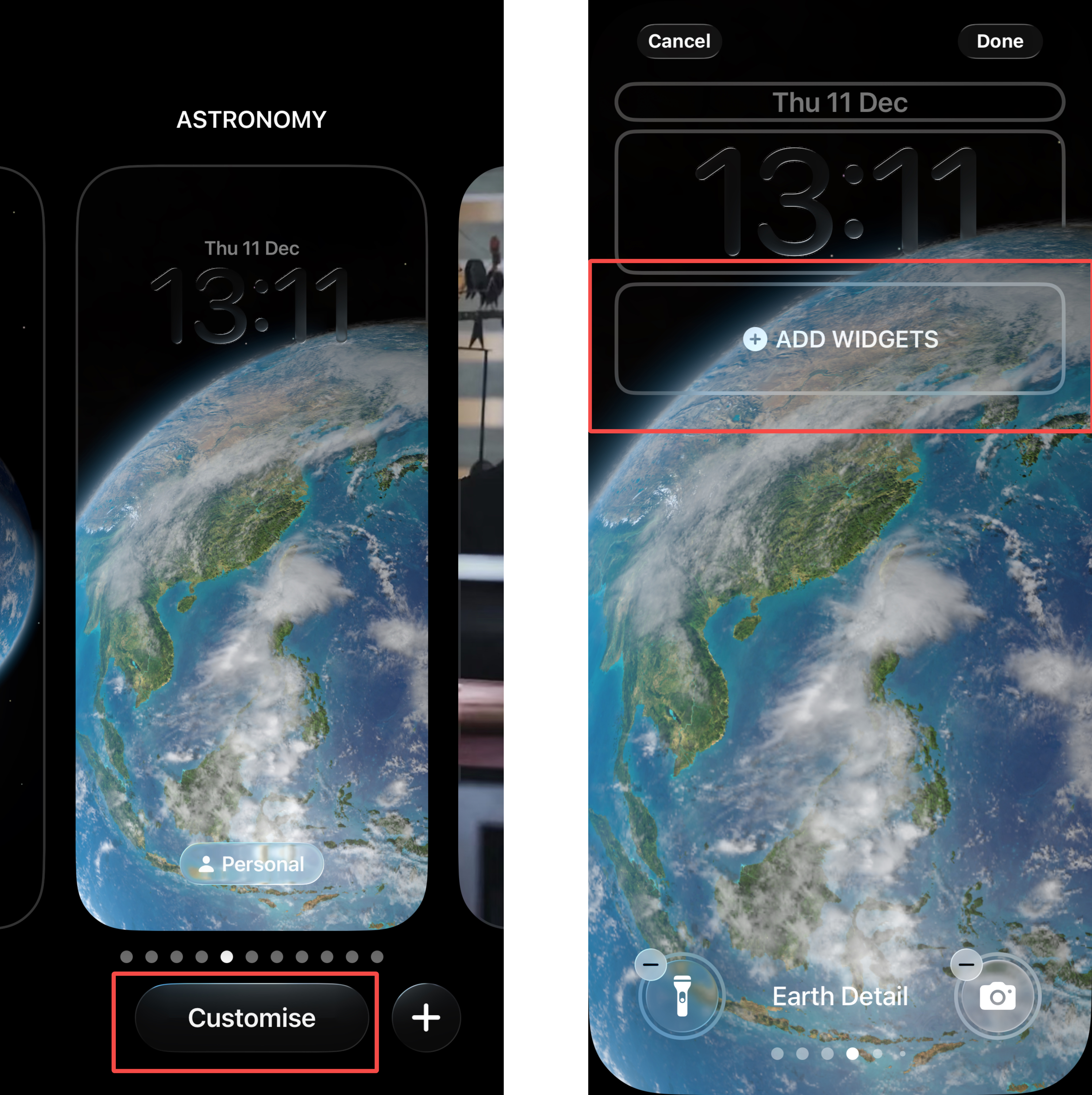
Step 1
While in lock screen mode, press and hold the screen, then tap Customize to enter edit mode. Next, tap Add Widget.
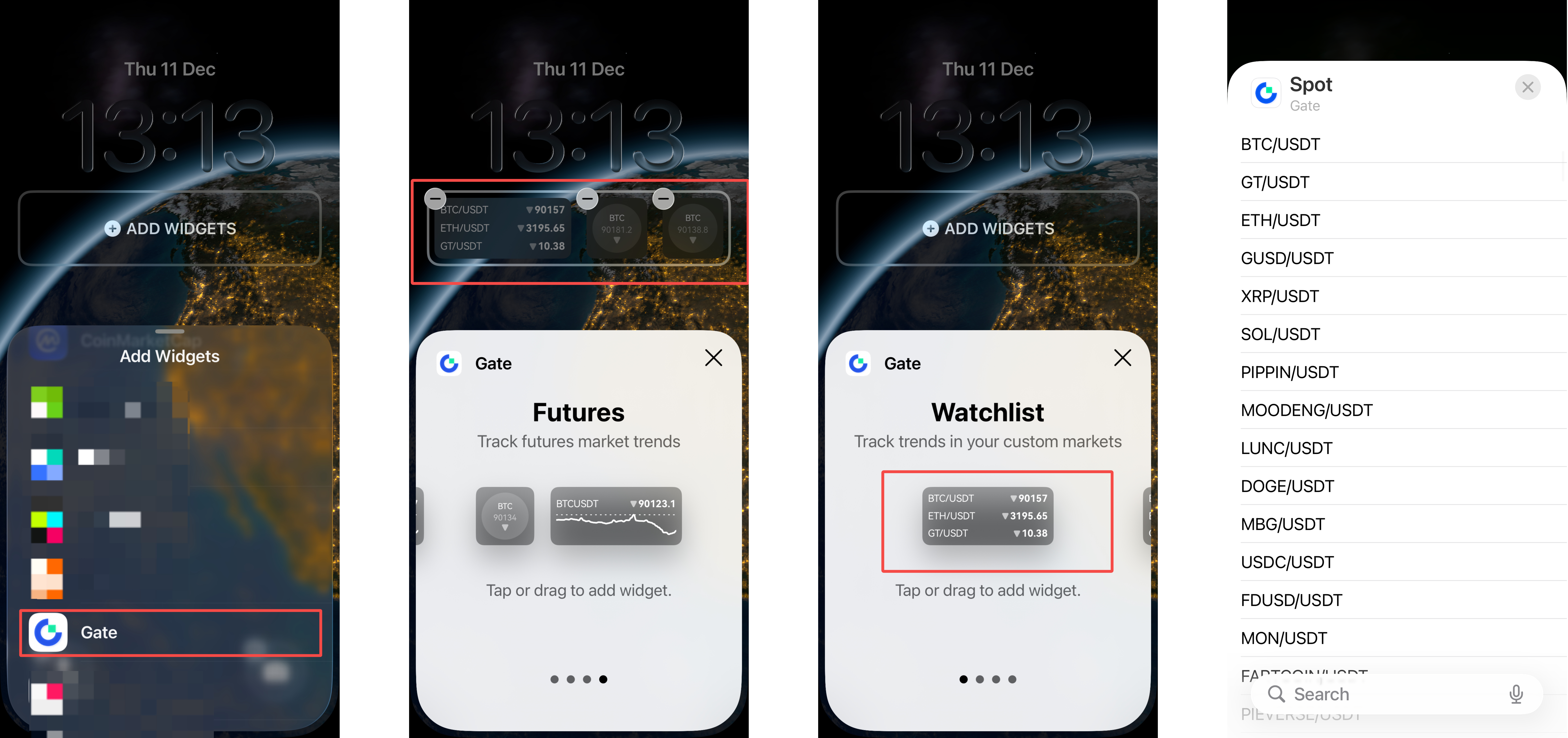
Step 2
In the Add Widget overlay, scroll down to find and tap Gate. This will take you to the widget selection library, where you can swipe left or right to browse different widgets. Tap or drag a widget to add it to your lock screen. To display a different trading pair, tap the trading pair within the Widget and select another one to show.
The content provided herein is for reference and educational purposes only and does not constitute any financial, investment, trading, or legal advice, nor does it constitute an offer or solicitation to buy or sell any digital assets. Gate makes no express or implied representations or warranties regarding the accuracy, completeness, or timeliness of the information contained herein. Product features, interfaces, rules, and fee structures may be updated or adjusted at any time. Please refer to the latest announcements and the actual information displayed on the Gate platform for the most accurate details.
Digital asset investments involve significant risk, and prices may fluctuate substantially. You may lose the entire amount of your investment. Please make decisions cautiously based on your own financial situation and risk tolerance after fully understanding the associated risks. If necessary, you are advised to consult an independent professional financial or legal advisor.
For more information about potential risks, please refer to Gate's Risk Disclosure and User Agreement.
